ShixxNOTE is a desktop sticky notes (post-it) program, that allows you to keep desktop sticky notes, and also send them across the network to your friends and colleagues (LAN messenger). As a program author in this blog I will write something about program, plans for new version, advanced program features, help, news, etc. So read it and comment my posts, ask me questions, write me your suggestions and ideas to improve ShixxNOTE.
Monday, October 07, 2013
Title and Close menu
So now when I have note created I will show you both of them. When you right mouse click on a note title you get "Title menu" like this one on the image below.
As you can see I set alarm and expiration on this note. Now you can see small and simple title menu. Here you can edit title text, select title font and set title text color. Also cool item is "Roll up" I hope you know what is this. "Roll up" shortcut is to double click (left mouse) on the title. Later you will see image of this note rolled up.
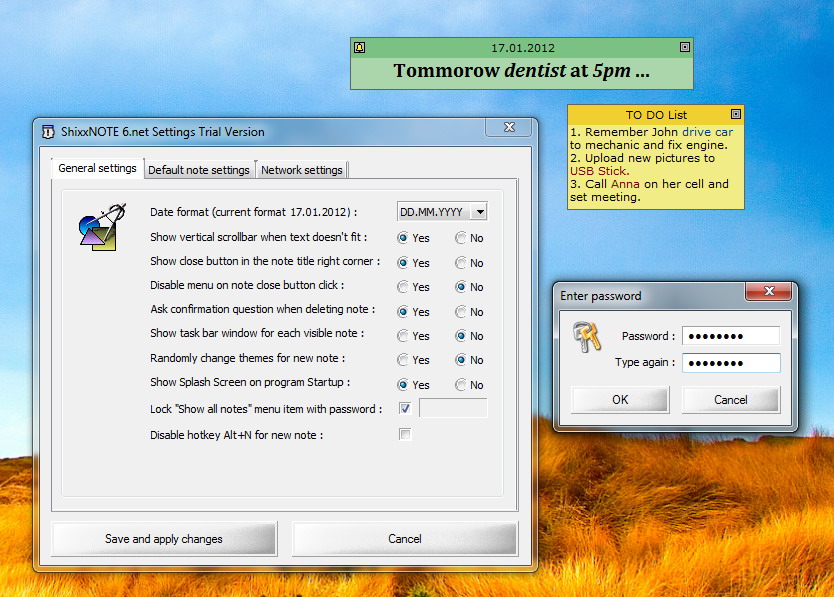
On image above you can see "Close menu" which you get when you click on small square icon located on the title right. Same as on previous menu you get "Roll up" item with "Hide note" and "Delete note" items. If you didn't know you can remove this menu in the program settings, under "General settings" tab. There you have two questions regarding this close icon and close menu. "Show close button in the note title right corner" default is "Yes" and "Disable menu on note close button click" default is "No". This are default settings but you can change it and remove close icon or just remove close menu. Your choice. If you like default settings then like me I click on the "Roll up" menu item and get this image below.
Now my note is rolled up. But you can see note title text, also info about alarm and expiration if you move mouse under alarm or expiration icons. Also you got now "Roll down" icon and in the "Title menu" note there is "Roll down" item now.
That is all you have to know about title menu and close menu. I hope you are satisfied, because maybe you learn something you didn't know.
Kind regards,
Ozren Sirola
ShixxNOTE Program Author
Thursday, April 25, 2013
Send note to recipient anonymously
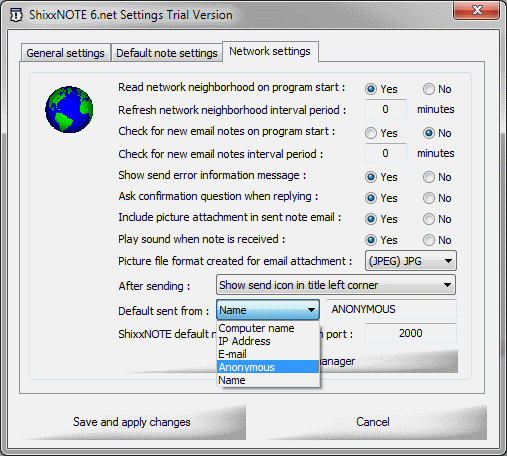
To send anonymous note you can do it always when you are in "Send note to" - "Other" dialog where you can change "Sent from:" drop down list and select "Anonymous" so nobody can not trace to you. But now I will show you how you can set in ShixxNOTE program "Anonymous" as a default setting. Right mouse click on a ShixxNOTE tray icon which is located at your taskbar to get program main menu. From main menu select "Settings" and then go to "Network settings" tab.
There you find drop down list "Default sent from:" where default is "Computer name". That is a program default setting so if you are sending note to other they will see your computer name in menu item "Repy to COMPNAME". But if you select "Anonymous" in that list then yours recipients will receive exactly the same note as you have on your screen, with the same text in the note title. Which is different because normally text in title show you time when note has arrived and also note font is set to Arial Narrow. So simply select "Anonymous" in the list and click on a "Save and apply changes". From now on notes sent from your computer will not have time stamp, Arial Narrow font and note will be without "Reply to ..." note menu item.
Sometimes it can be usefull to be anonymous in this Big Brother world which is surrounding us :-)
P.S. As you have noticed you can select also your "IP Address", "E-Mail" or "Name" when you can put any name which will be then showed to recipient.
Kind regards,
Ozren Sirola
ShixxNOTE Program Author
Friday, December 28, 2012
Create and save note theme(s)
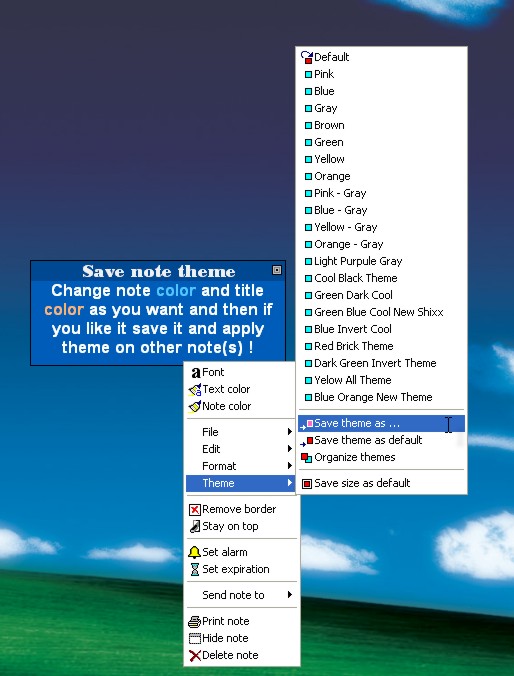
You will get small dialog to write the name of your custom theme. That is all !
You have created your custom note theme. Also your theme is saved in list on themes in note menu. So if you want to change note theme on some other note you simply open note menu and select your saved theme. Then your for example yellow note will be changed.
And finally in note menu under "Theme" sub menu you can select "Organize themes" item and then you will get dialog like this one on the image below and in that dialog you can change order of your custom saved theme(s) also you can change name of your theme. I hope now you understand how easy is to create and use note theme(s).
Kind regards,
Ozren Sirola
admin@shixxnote.com
ShixxNOTE program developer
Sunday, September 30, 2012
Example of using ShixxNOTE in your office
In this post I will show you on an image how ShixxNOTE program can be effectively use in your office or at any network (LAN). This example is about software company and how can developers in it use program to speed up a process of development.
This example shows how only 2 computers with ShixxNOTE installed on it can communicate promptly. But Carl could send his note to Shawn, Peter and Marc which are his work colleagues. He could save that recipient list as a "Project X Team" and after that he simply create note and from note menu send note to saved group "Project X Team" and then Shawn, Peter and Marc will receive notes promptly.
I hope you understand how this is cool ! You have one program ShixxNOTE and all communication goes through it. In my company we use this for more than 5 years. But my latest customers are from medical background. Many dental offices from US, medical institute from France, etc. I find out that they have a need for ShixxNOTE. Hope they will spread out the word about my program ShixxNOTE.
P.S. At the program site, you can find new version of program which now have some cool transparency effects and some minor improvements. This is release from September 2012.
Kind regards,
Ozren Sirola
ShixxNOTE Program Developer
Thursday, July 12, 2012
ShixxNOTE Quick look video
Click play and enjoy this short video !
Kind regards,
Ozren Sirola
ShixxNOTE Developer
Tuesday, July 10, 2012
Send note to a saved group of recipients
Let's say you have company on three floors, and you have 5 managers in your company. And you decided to have a meeting at 11am. But you don't want to go on the third floor just to say your sales manager about meeting. Instead of that you can use ShixxNOTE for that. First you create note and write on it when and where is meeting. When you get "Send note to" other dialog, you must click on every manager you want to be present, but let's say you always have meeting with same managers. First time you click or enter IP address of every manager, but then you click on "Save Group" button on "Send note to" other dialog.
Then program will ask you to enter group name for saved recipients. That will be here "Managers Group". See picture below.
Your group "Managers Group" will appear in the list box above the recipients list. So any time later when you want to call a meeting again with same persons you will just select "Managers Group" from list of saved group. You can have how many you want saved groups.
After that your group is saved as a "Managers Group". So you can always select it from list in send note to other dialog and add some more recipients or one ideal solution is that all your saved groups will appear in note menu "Send note" and you will see your saved group "Managers Group". And click on it and all recipients in saved group will receive note promptly. You can also see that Group with more than one recipient in it will have different icon (many small boxes).
Kind regards,
Ozren Sirola
www.shixxnote.com
admin@shixxnote.com
Wednesday, March 28, 2012
ShixxNOTE Licensing policy and registering program
After you buy ShixxNOTE 6.net 5-Users License you will receive email with download link for you registered version. Off course that link will be valid only for few days after that it expires. 5-Users License means that you can install ShixxNOTE registered version on 5 different computers (5 different IP addresses). If you have some small company with 5 computers and some extra one, than 5-Users License will be enough.
![]() |
| SWREG payment processor company owned by Digital River corporation. |
After you install program on that 5 computers in your LAN, program will automatically at Windows start run network neighborhood search. Program is server and client in same time. It have one thread which is always listening on port 2000 (default port can be changed) for ShixxNOTE note data. When you send note to for example 4 recipients in your LAN they will promptly create desktop note and play sound when note data is received through port 2000. That is one way how program communicate. Also you can put in a recipient list email address, IP address or name of computer in your LAN which doesn't have program installed. Then what ?
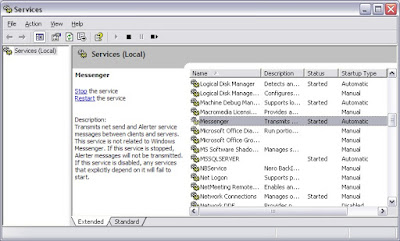
ShixxNOTE will first try to send note data to that entered computer name or IP address if port is not open (maybe some firewall is blocking port 2000) than it will try to use NET SEND command to deliver just a message text and sender name. So you do not need to have ShixxNOTE installed to receive text from someone who has installed program. That NET SEND command is part of Windows Messenger service but it works only Windows 9X/Me and XP/2K if you enable it in your services. I wrote before article about how to start that service on Windows XP/2K. I didn't forget email recipient. For that program first create note picture in JPEG or BMP format, after that it create email with note picture in an attachment and all necessary note informations in email body, also email subject contains text "ShixxNOTE note from" computer. When email recipient receives note he will see it in his Inbox first but if he has ShixxNOTE installed on computer than right mouse click on ShixxNOTE tray icon and on main program menu select "Check for Email notes". After you click on that menu item program will search through your Inbox and will find all emails created by ShixxNOTE program and if email contains all necessary data in body program will parse data from email and create note on computer desktop, after that it will clean Inbox and delete that mail.
Finally maybe now you are aware how program works. And I tried to describe all three was how ShixxNOTE program is sending note to recipient (directly through port, NET SEND command and via email). So I hope you will go to ShixxNOTE program homepage and buy program license which most suits your needs. Maybe in your company or ar home. But I will be glad to have one more customer.
To be sure you will not miss "Buy Now" button on program homepage. These are direct order links for ShixxNOTE program versions which will redirect you to secure payment processor site:
- 5-Users License....................$25.00
- 10-Users License..................$50.00
- 25-Users License..................$100.00
- 50-Users License................$150.00
- 100-Users License..............$250.00
- Unlimited License................$400.00
- Redistribution License..........$700.00
P.S. Check for special offer on ShixxNOTE program home page. Also for more info about license write directly to me. Because I also can make customized version or modified version to suit your need.
Kind regards,
Ozren Sirola
Program Developer
ozren.sirola@ri.t-com.hr
admin@shixxnote.com
Tuesday, January 17, 2012
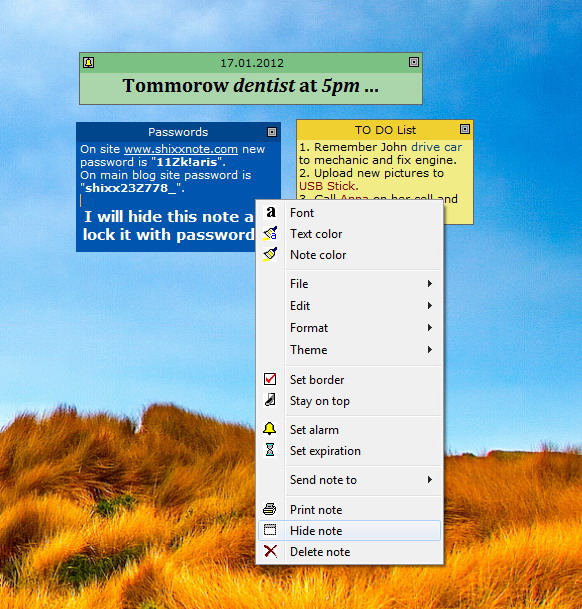
Hide note(s) and set password
Saturday, October 15, 2011
ShixxNOTE program on Wikipedia
Check popular encyclopedia Wikipedia and you will find ShixxNOTE in it. There is a page with all info about ShixxNOTE program and some images. Also you can find program under many categories on Wikipedia. It is listed in categories Desktop notes, LAN messengers and instant messaging. That is great award for all effort I used as a programmer and developer.
Thursday, October 13, 2011
Default and saved Themes in ShixxNOTE

Thursday, April 28, 2011
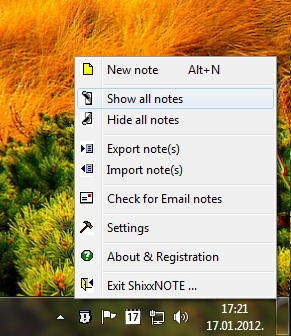
Main menu in Windows 7

Wednesday, February 16, 2011
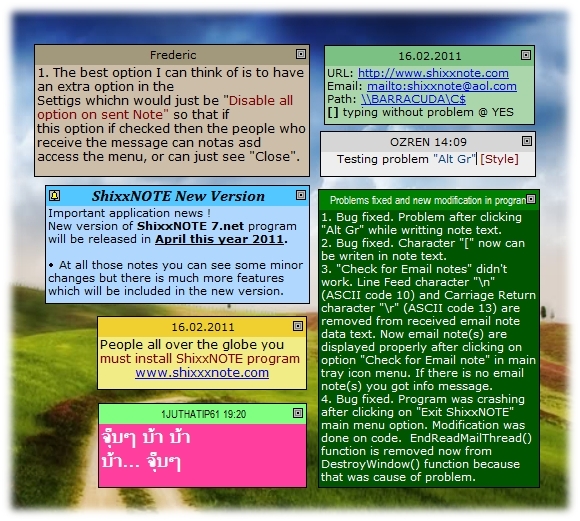
ShixxNOTE 7.net New version release date
Every potential customer who register current ShixxNOTE 6.net program version till December 2012 will get new stable version of ShixxNOTE 7.net and a license bonus for the same price. That means, if you now register for example ShixxNOTE 6.net 5-Users License which costs $24.95, in December 2012 you will get registered ShixxNOTE 7.net 10-Users License version, because you have license bonus.
So register now current program release and get license bonus for new version which will be released in December, 2012.
Kind regards,
Ozren Sirola
ShixxNOTE developer
admin@shixxnote.com
http://www.shixxnote.com/
Saturday, October 24, 2009
ShixxNOTE 6.net on Windows 7
So my ShixxNOTE program is ready for all future operating systems released from Microsoft Corporation as the latest one Windows 7 which is really good operating system.
But there is one minor "problem". When you start your computer ShixxNOTE is reading your network neighborhood, before on Windows Vista and all old Windows operating systems that last few seconds or maximum few minutes. On Windows 7 you can experience that you see small ShixxNOTE program dialog above the clock in the task bar, which says "Reading your network neighborhood. Wait for few seconds ...", for up to 5 minutes if you have more than 20 computers in your LAN. In a new version which will be soon released I have implemented fast network reading which will solve this little "problem" and program will read your network in a seconds on all old and future Windows operating systems.

Tuesday, November 18, 2008
Backup your notes
For example maybe you have bought new computer and you want to import all note(s) from your old computer to this new one. This is very easy task. Just follow this steps.
Open program main menu (right mouse click on program tray icon) and select „Export note(s)“ option from menu. See picture below.

After you select option „Export note(s)“ from ShixxNOTE main menu, you will get „Export note(s)“ dialog with all notes from your desktop or hidden notes. If you want to backup (export) all notes click on button „Check all“ it will check all notes in list. If you want you can uncheck (remove) note(s) you don't want to backup. See picture below.
When you are finished with checking note(s), click on „Export“ button. Then you will be prompted to write file name and to choose directory where to create ShixxNOTE program backup file („*.shx“ extension). In my case file name is „MyBackupNotes.shx“ located in „C:\Temp“ directory on my hard disc.

So now you have all your notes in just one file with all data in it. After that for example copy file „C:\Temp\MyBackupNotes.shx“ to USB memory stick and copy file in some folder on new computer with ShixxNOTE installed. Now on new computer open main program menu (right mouse click on tray icon) and select „Import note(s)“ item and browse to “MyBackupNotes.shx“ ; click on button „Import“ and you will get all your exported notes on your desktop.
So please use this options to backup your notes or to export it from one computer to another (both computers have ShixxNOTE installed).
Kind regards,
Ozren Sirola
ShixxNOTE Program Developer
http://www.shixxnote.com/
Thursday, September 20, 2007
Sending note via NET SEND
Here is example picture of what will recipient receive (which doesn't have ShixxNOTE program installed) if you send him note (computer name or IP address) :
Windows NT/2000/XP/Vista has a special program - Messenger Service - that provides for receiving and sending winpopup-compatible messages. If this service is running, the system will receive messages. The received messages are immediately displayed as simple message boxes. To send messages, you can use any winpopup-compatible messenger and also ShixxNOTE 6.net
Windows XP operating systems have this service. Before SP2 service was started automatically, but after release of SP2 for Windows XP this service has been stopped by default. So when ShixxNOTE 6.net is sending (trying to send) note via NET SEND and recipient doesn't have Messenger Service started he will not receive note text in simple message box. That is why you should have Messenger Service running for NET SEND to successfully send a message.
You can start or stop Messenger Service at any time. And you can also configure it in such a way that it would start automatically at the system startup. There is a special program for controlling all services in the system - Services.

See below the guide on how to launch Messenger Service and configure it to be launched automatically.
Windows XP Professional
- Click Start->Settings ->Control Panel
- Click Administrative Tools
- Click Services
- Double Click Services Scroll
- Scroll down and highlight "Messenger"
- Right-click the highlighted line and choose Properties
- Click the Start button
- Select Automatic in the Startup Type scroll bar
- Click OK
To install it or to make sure that it is installed:
Windows 95
- Open Add/Remove Programs from Control Panel.
- Select Windows Setup tab.
- Select Accessories and click Details
- Check Winpopup and click Ok
- Click Ok
- Open Add/Remove Programs from Control Panel.
- Select Windows Setup tab.
- Select System Tools and click Details
- Check Winpopup and click Ok
- Click Ok
Thursday, February 15, 2007
ShixxNOTE 6.net ready for Windows Vista

Everybody is talking about Windows Vista and how will old programs work on new Microsoft Windows platform. So I decided to check if ShixxNOTE 6.net is ready for Windows Vista. I have installed Windows Vista Ultimate version on one new computer in my LAN. Everything was prepared for installation of ShixxNOTE 6.net latest release (December 2006).


Thursday, January 11, 2007
New Release December 2006
- Critical security bug is now fixed. Parsing network message is improved and now possible attacker can not cause buffer overflow. This bug was discovered by Luigi Auremma.
- Important bug fixed. All received notes will be visible after computer or program restart. Problem with disappearance of received notes is now fixed. In previous version, received notes sometimes were lost after program restart. Now in this new release you will always see all your received notes and no more lost notes.
UPDATE 27 Dec 2006: The author has released a patched version (build 125)
Also I have to inform you that ShixxNOTE 6.net is ready for Windows Vista, check program homepage under section What's New or Awards to see more.
Ozren Sirola
http://www.shixxnote.com
Thursday, November 30, 2006
Set Alarm to note(s)

As you can see from picture above. For this note I set alarm with sound at 14:50 which will be repeated every month on day selected in "Date" text box. If you have more than one note, you can set different alarm settings on each one. After you set and apply alarm settings to note, small alarm icon will appear in note title on left side.
When note alarm you, it will play a sound and will popup in front of all other windows you have on your screen, so you will hear it and see it for sure. Also small alarm icon in title will change color to red.
In note menu you have also "Set Expiration" option. With this you can set when note will expire. When note expire it will be deleted. Dialog settings are similiar with alarm settings.
Regards to all,
Ozren Sirola
ShixxNOTE program developer
Wednesday, August 09, 2006
Windows Firewall and ShixxNOTE
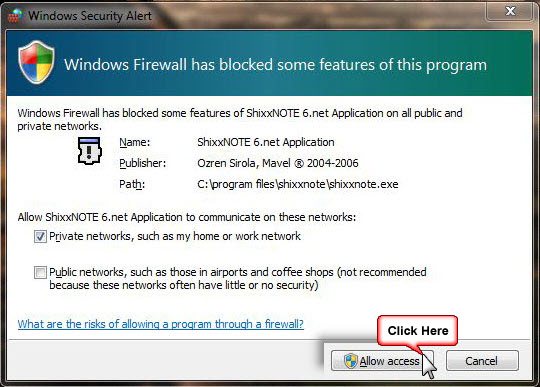
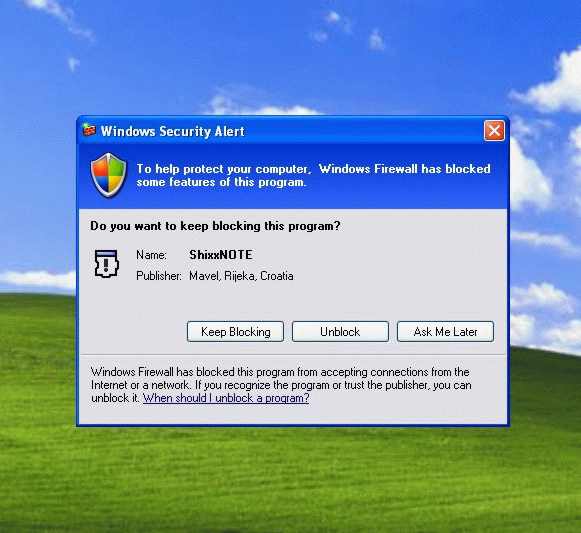
Also you can always open ShixxNOTE communication port "2000" manually in "Local area connections" - "Advanced tab". If you don't know how write me and I will help you.
If you have any problems with sending or receiving notes in program, check your firewall settings first. If you didn't fix the problem ask your network administrator to help you.
And finnaly write me if you have any problem regarding sending and receiving notes, or any other problems with program.
Ozren Sirola
admin@shixxnote.com
Monday, July 31, 2006
Save your own note theme

In program there is plenty of options you can use to customize your notes. So investigate program options and you will see how many cool stuff can be done with notes.
Regards to all,
Ozren Sirola
ShixxNOTE 6.net
www.shixxnote.com